VCam 1.2 for Mac is here


Look studio-ready on every call.

VCam is a native Mac virtual camera. It removes your green screen cleanly — down to individual strands of hair — and puts you in front of any backdrop, in every app you use.

Version 1.2 · macOS 15 or later · Apple silicon & Intel · 4 MB

Weekly syncCamera: VCam
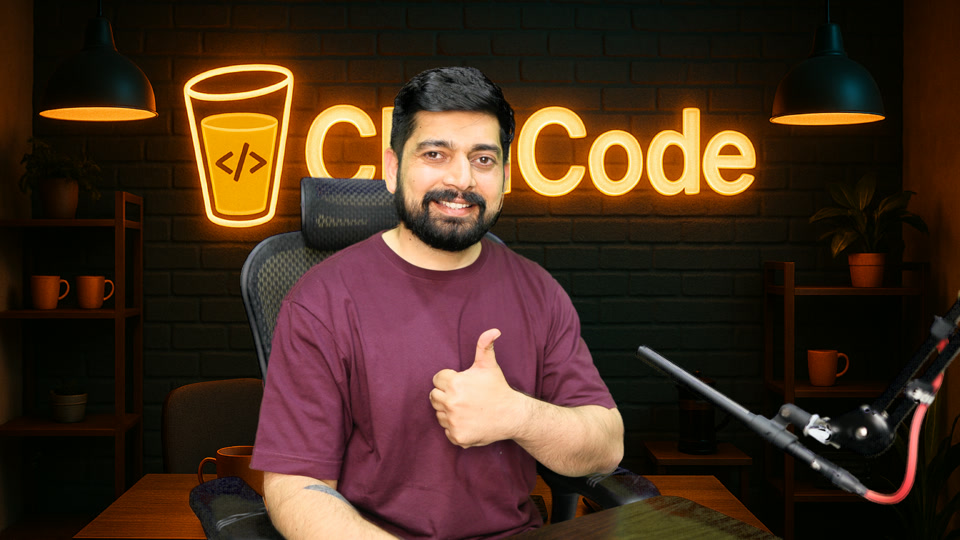
Raw camera frame: smiling, thumbs up, in front of a green screen The same frame through VCam, on a branded studio backdrop with soft blur
Your camera Through VCam

Drag to compare. A real frame from a DSLR through an Elgato Cam Link — nothing retouched.

Shows up as a camera in

ZoomGoogle MeetMicrosoft TeamsOBS StudioSlackFaceTimeWebexDiscord

Keying quality

Edges that hold up at 100%.

Most virtual backgrounds smear your hair into a soft blob with a halo around it. VCam keys every pixel against the real colour of your screen, so the edge looks like it was shot on set.

Basic chroma key: soft hairline with a visible halo
Basic chroma keySoft blob, glowing halo
VCam: crisp, natural hairline with no halo
VCamSame frame, same backdrop
01

Reads your real screen

Lighting falls off across every green screen. VCam measures the screen's colour around you, so shadows and wrinkles key out without eating into your hair.

02

Recovers true edge colour

Edge pixels are part you, part screen. VCam separates the two mathematically — no green fringe, no olive outline on dark clothes.

03

AI that only helps

On-device person detection fills holes from green reflections on your clothes, but never paints a halo or lags behind when you move.

Matte view showing the key in black and white
Matte view

See exactly what's being kept.

Flip to the black-and-white matte to tune your key, pick the screen colour with an eyedropper or let Auto find it. The mic arm and chair stay; only the screen goes.

Backdrops

Your space, your brand.

Drop in your own studio image, a looping video or a clean colour — with as much depth-of-field blur as you like. Switch looks mid-call with a hotkey.

Images

PNG, JPEG or HEIC — scaled with high-quality resampling to fill the frame.

Looping video

MP4 or MOV backdrops that loop seamlessly behind you.

Solid colours

Any colour, for a clean product-shot look.

Blur your room

No green screen today? Keep your real room and blur it with on-device AI.

Virtual lighting

Good light, even with the lights off.

Two controls fix the most common lighting problems — and they only touch you, never your backdrop.

Lights off, before
Lights offStraight from camera
Lights off, with Subject light and Shadow fill
With VCamSubject light 30 · Shadow fill 100

Subject light

A virtual key light. Lifts your face and shirt along a curve that never blows out highlights.

Shadow fill

Softens the shadows an overhead light leaves under your eyes and chin — skin only, so your hair and beard keep their depth.

Everything else

Built like a pro tool.

Digital zoom & pan

Up to 4× with a drag-to-frame preview, so a wide DSLR shot becomes a perfect head-and-shoulders.

LUTs & picture controls

Load any .cube LUT with an intensity slider. Brightness, temperature, tint, saturation and gamma.

Presets & hotkeys

Save complete looks and switch from anywhere with ⌃⌥⌘ 1–9. Toggle the key with ⌃⌥⌘G.

1080p & 720p · 30/50/60 fps

Behaves like a real webcam — each app picks the format it prefers, rendered on the GPU in real time.

Big preview

Pop the live output into its own window or full screen while you fine-tune from the panel.

Camera-off card

Unplug the camera or quit VCam and calls show your own image instead of a frozen frame.

Lives in the menu bar

No Dock icon, launches at login, and is ready before your first call of the day.

Private by design

Every frame is processed on your Mac. No accounts, no cloud, no uploads.

One-click updates

VCam checks for new versions and installs them for you — verified and signed.

How it works

Your camera in. A better camera out.

Input

Any camera

A DSLR or mirrorless via a capture card like Elgato Cam Link 4K, a webcam, or your iPhone with Continuity Camera.

→
VCam

Metal GPU pipeline

Keying, matting, backdrop, lighting and colour — real time at up to 1080p 60 on Apple silicon.

→
Output

“VCam” camera

Pick VCam in any app. It's a native macOS camera extension, so it works everywhere a webcam does.

Specs
RequiresmacOS 15 Sequoia or later
ProcessorsApple silicon and Intel (universal)
Output formats1920×1080 and 1280×720 at 30, 50 or 60 fps
Screen coloursGreen or blue, with auto-detect and eyedropper
BackdropsPNG, JPEG, HEIC, MP4, MOV, solid colour, room blur
Colour grading3D .cube LUTs
Download4 MB · notarized by Apple
Install in a minute
  1. Drag VCam to Applications

    Open the download and drag the app into your Applications folder.

  2. Open it and allow camera access

    VCam lives in your menu bar from now on.

  3. Approve the camera once

    System Settings → General → Login Items & Extensions → Camera Extensions. Every virtual camera on macOS needs this one-time step.

  4. Pick “VCam” in your app

    Zoom, Meet, Teams, OBS — wherever you choose a camera.

FAQ

Questions, answered.

Do I need a green screen?

For the cleanest result, yes — a green (or blue) screen is what lets VCam keep fine hair detail. Without one, choose “Blur room” and VCam uses on-device AI to separate you from your real background.

Which cameras work?

Anything macOS sees as a camera: DSLR and mirrorless cameras through a capture card such as Elgato Cam Link 4K, USB webcams, the built-in FaceTime camera and Continuity Camera on iPhone.

Does it work with OBS, Ecamm and streaming tools?

Yes. VCam appears as a regular camera called “VCam”, so OBS, Ecamm Live and any recording or streaming app can use it as a source.

Why do I have to approve it in System Settings?

macOS asks you to approve every virtual camera once, as a security measure. After that VCam simply appears in your camera list.

Is my video sent anywhere?

No. All processing happens on your Mac's GPU. VCam has no accounts and uploads nothing; the only network request it makes is checking for updates.

How do updates work?

VCam checks for new versions once a day. When one is available you'll see a prompt — click Install and VCam updates and relaunches itself. You can also choose “Check for Updates…” from the menu bar.

Show up like you mean it.

macOS 15 or later · Apple silicon & Intel · Released 6 October 2026